1. Introduction

1.1 What is "Lernen mit AR"?

A modern learning app where you can discover various explorations in an interactive feed. Each exploration contains modules with exciting 3D models and simple quiz questions for learning.

1.2 Who is this app for?

Adults, children from 12 years old. Anyone who wants to experience exciting digital explorations with 3D models on an iPhone with a camera.

1.3 Learning Content (Explorations)

The developer of the "Lernen mit AR" app continuously adds new explorations. To download a new exploration, you need an internet connection. If an exploration is already downloaded, you can enjoy it without an internet connection.


2. Getting Started

2.1 Installation & Requirements

Go to the App Store on your iPhone and search for "Lernen mit AR". There you can download the app directly.

2.2 First Launch

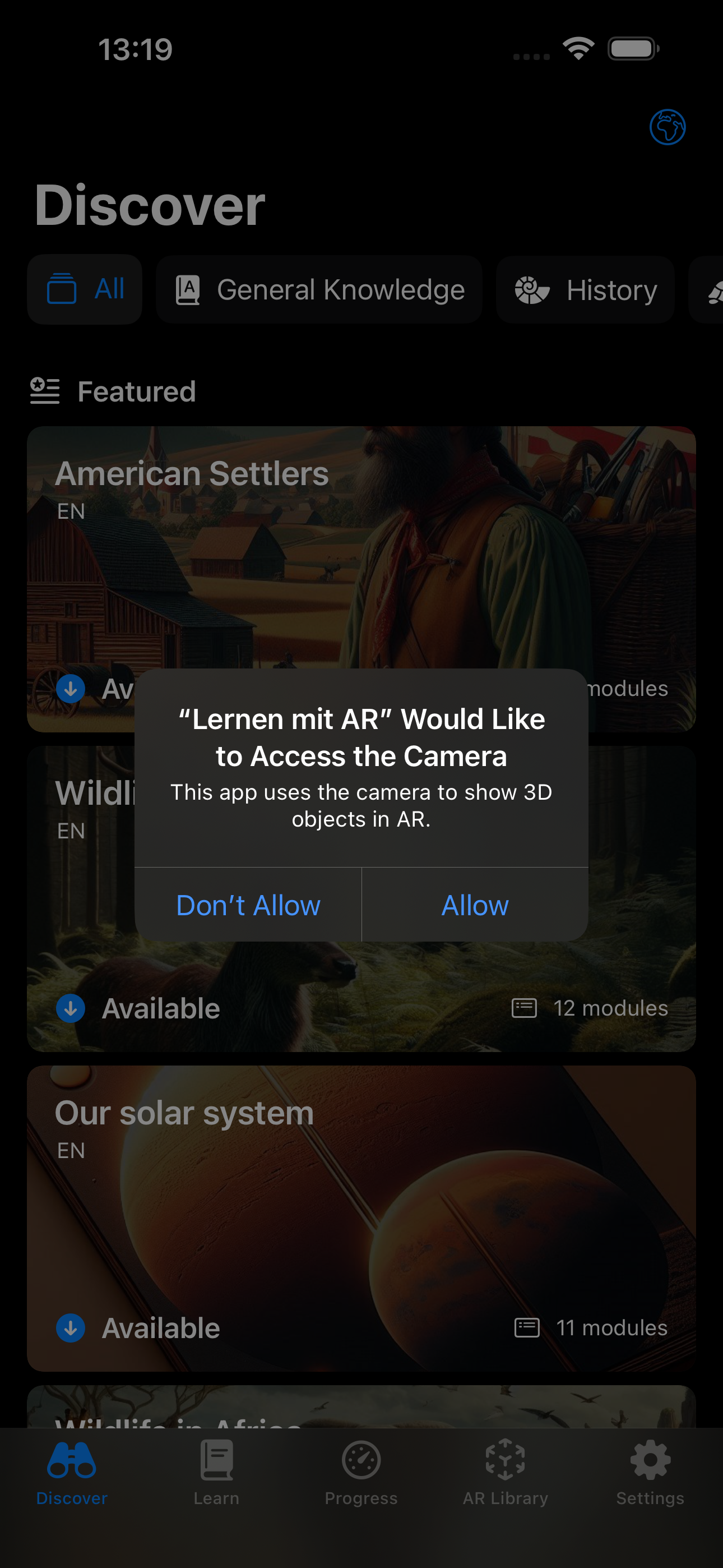
Due to the AR functionality, the app will ask for camera access.

To experience the 3D models in AR, you need to grant camera access. Otherwise, the object will be displayed in a virtual space.
2.3 Navigation in the App

The app has 5 (five) tabs.

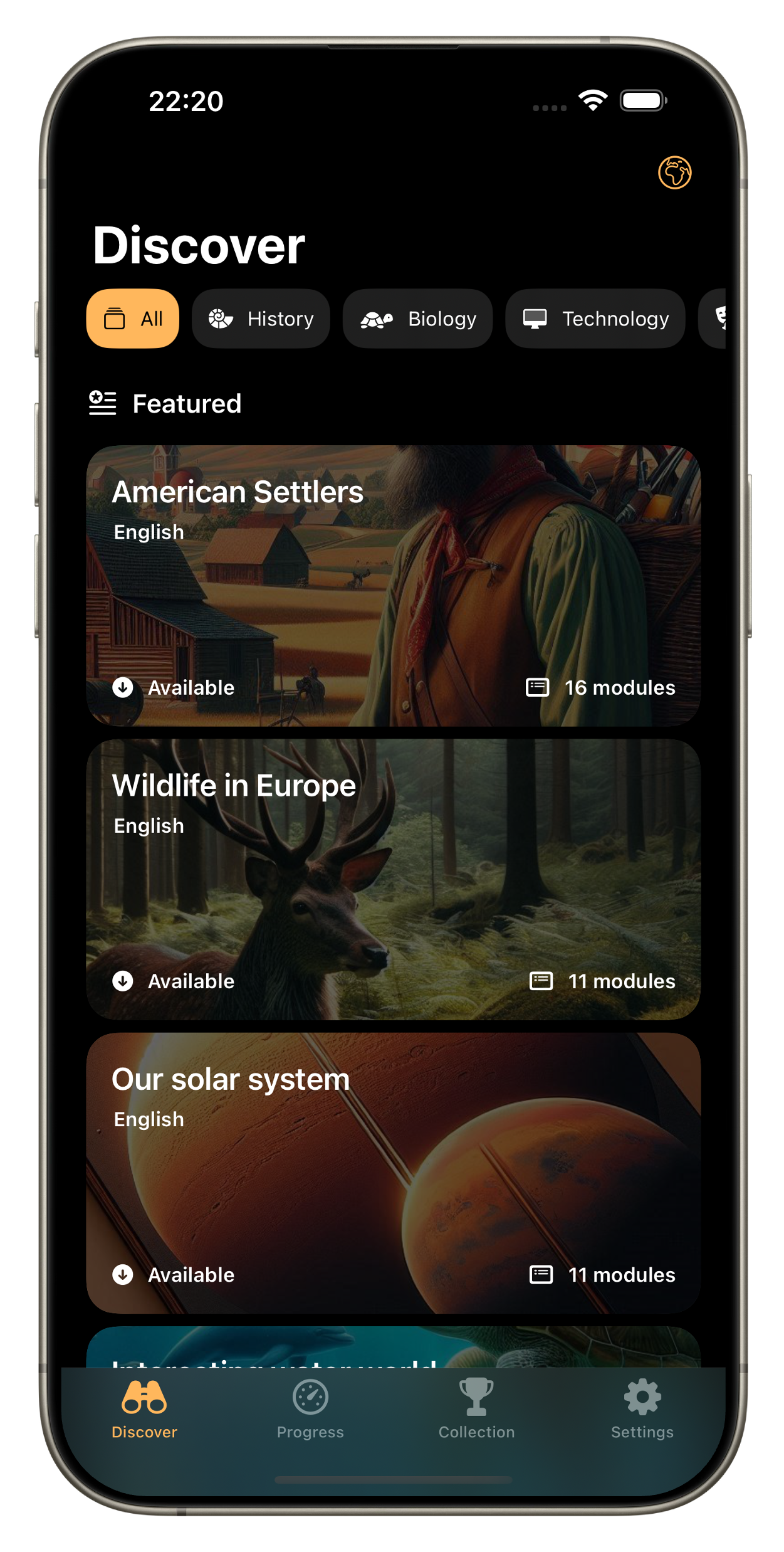
  • Discover: Here you can discover and download various explorations.

  • Learn: Here you can browse the modules of the exploration and experience the 3D models in AR.

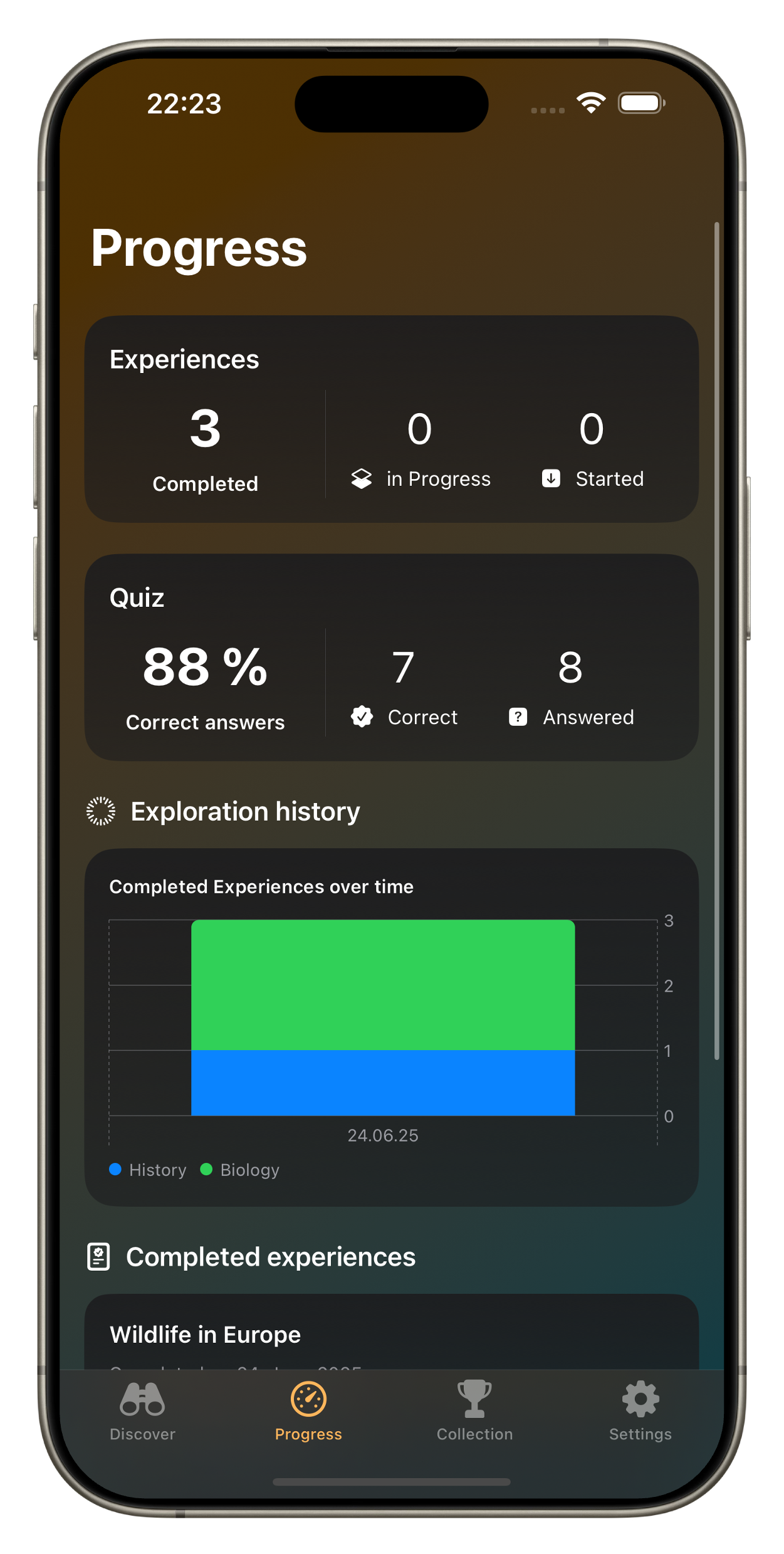
  • Progress: Here you can view the progress of all explorations on your device.

  • AR Library: Here you can experience the already downloaded 3D models from a library list.

  • Settings: Here you can view and change various settings as needed.


3. Features in Detail

3.1 AR Experiences

The app features an online catalog. This catalog is synchronized when the "Discover" tab appears.

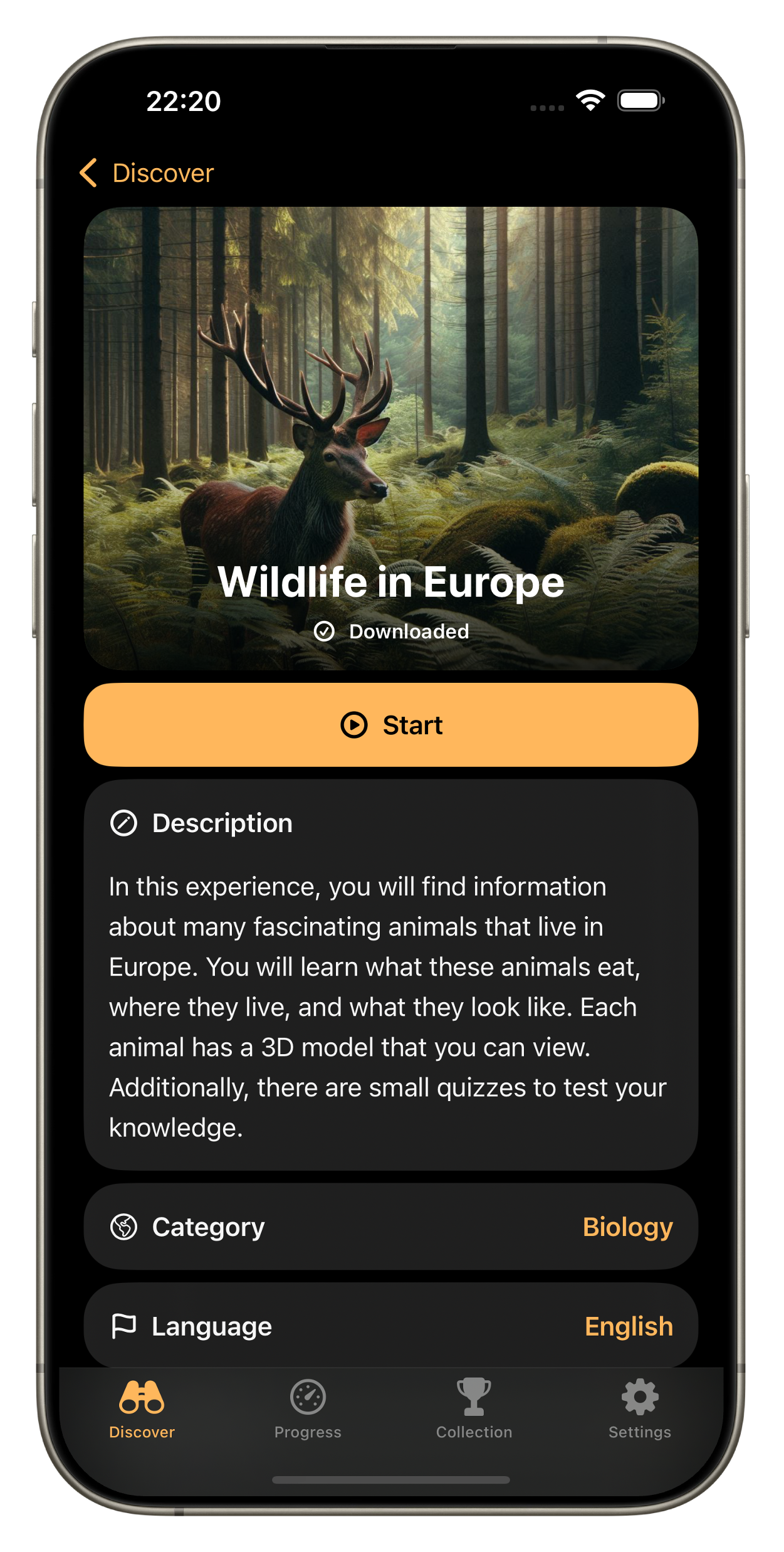
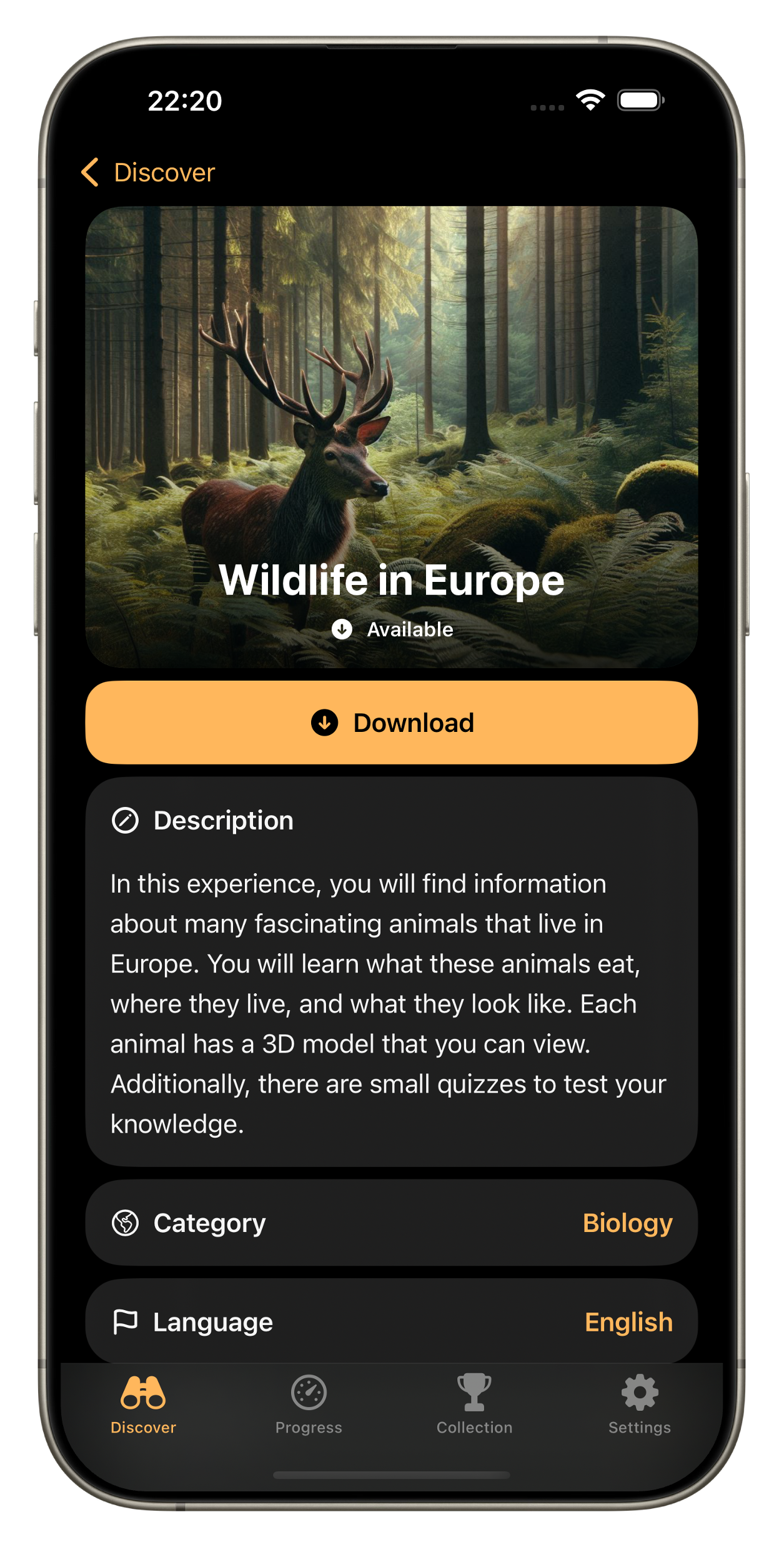
The app allows you to try out various Experiences. Each exploration contains modules, each module optionally with 3D models that you can experience in AR. To start an exploration, tap on an exploration, then on "Download" and finally on "Start".
3.2 Learning Modules

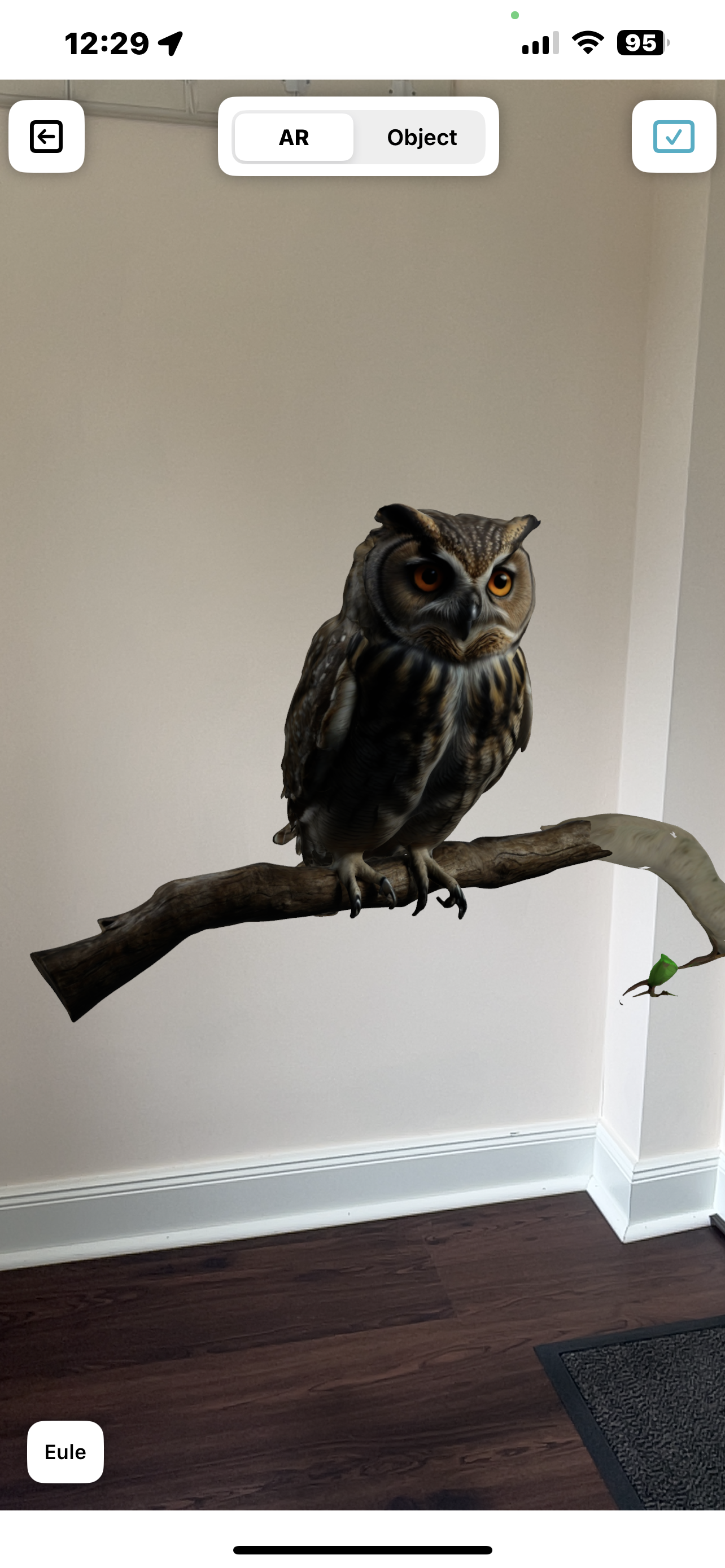
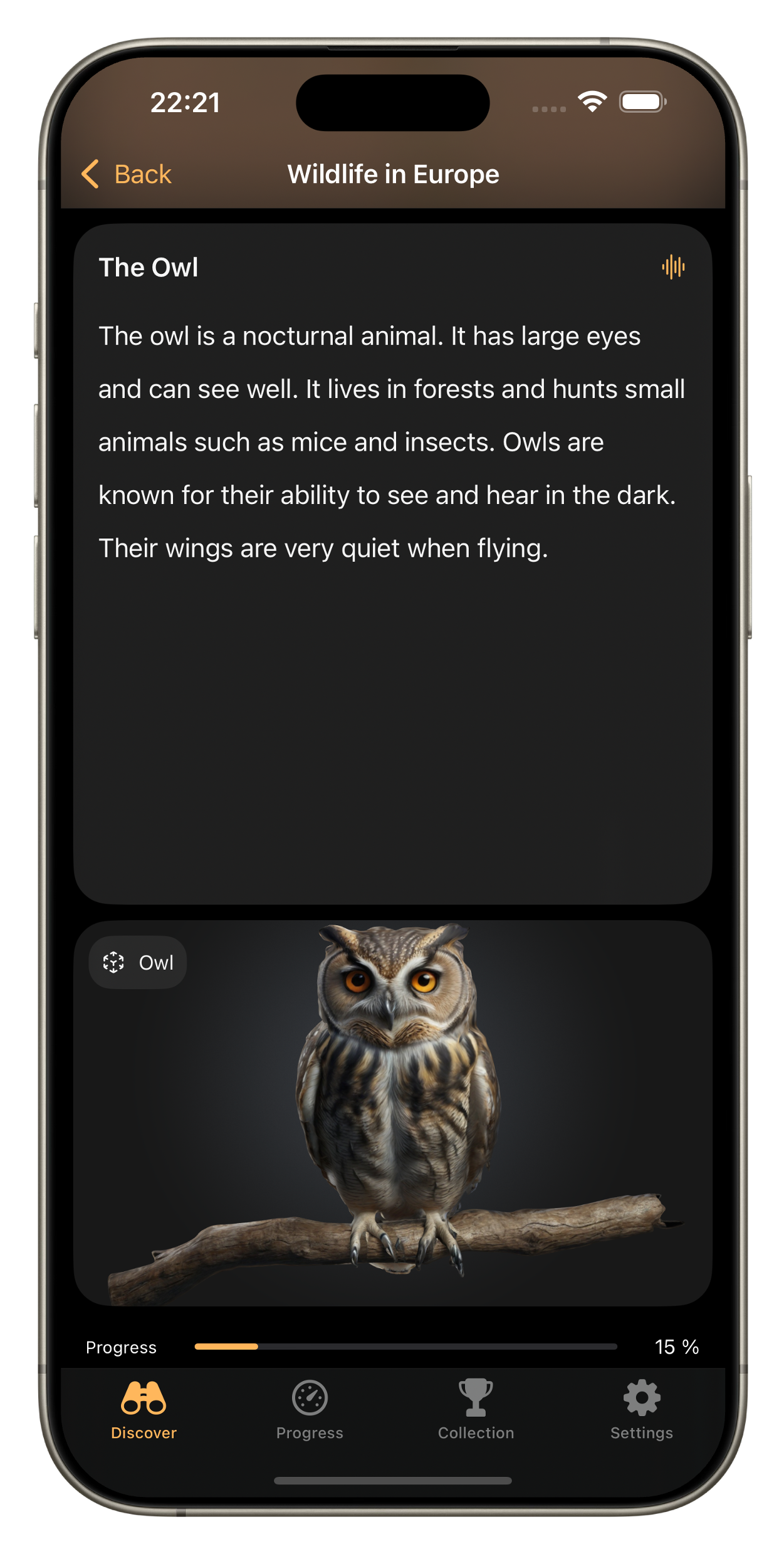
After selecting an exploration, you can browse through the modules in the exploration by scrolling on the "Learn" tab. The app will then activate the camera and you can experience the 3D model in AR.

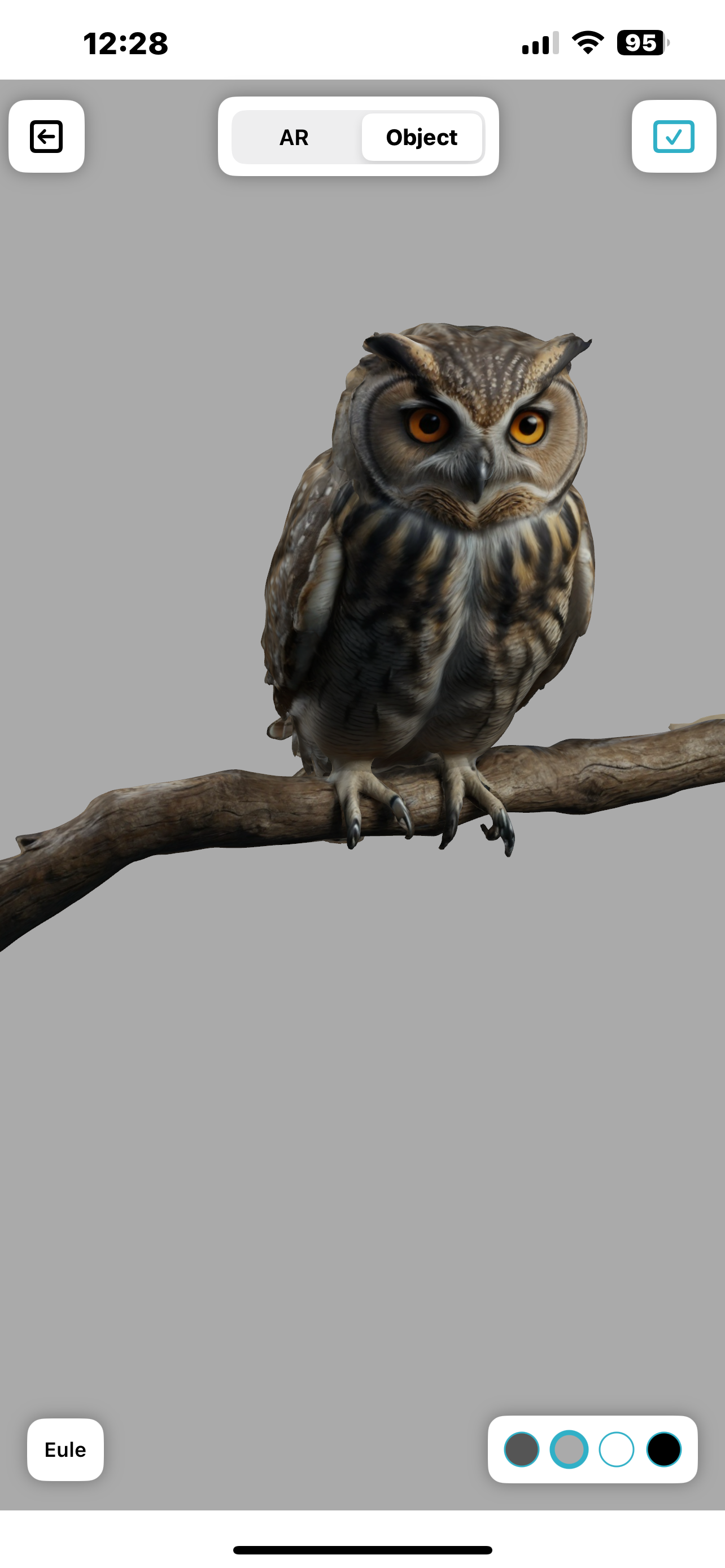
There are two ways to open a 3D model from a learning module: in "AR" or as an "Object".
3.3 Quiz Features

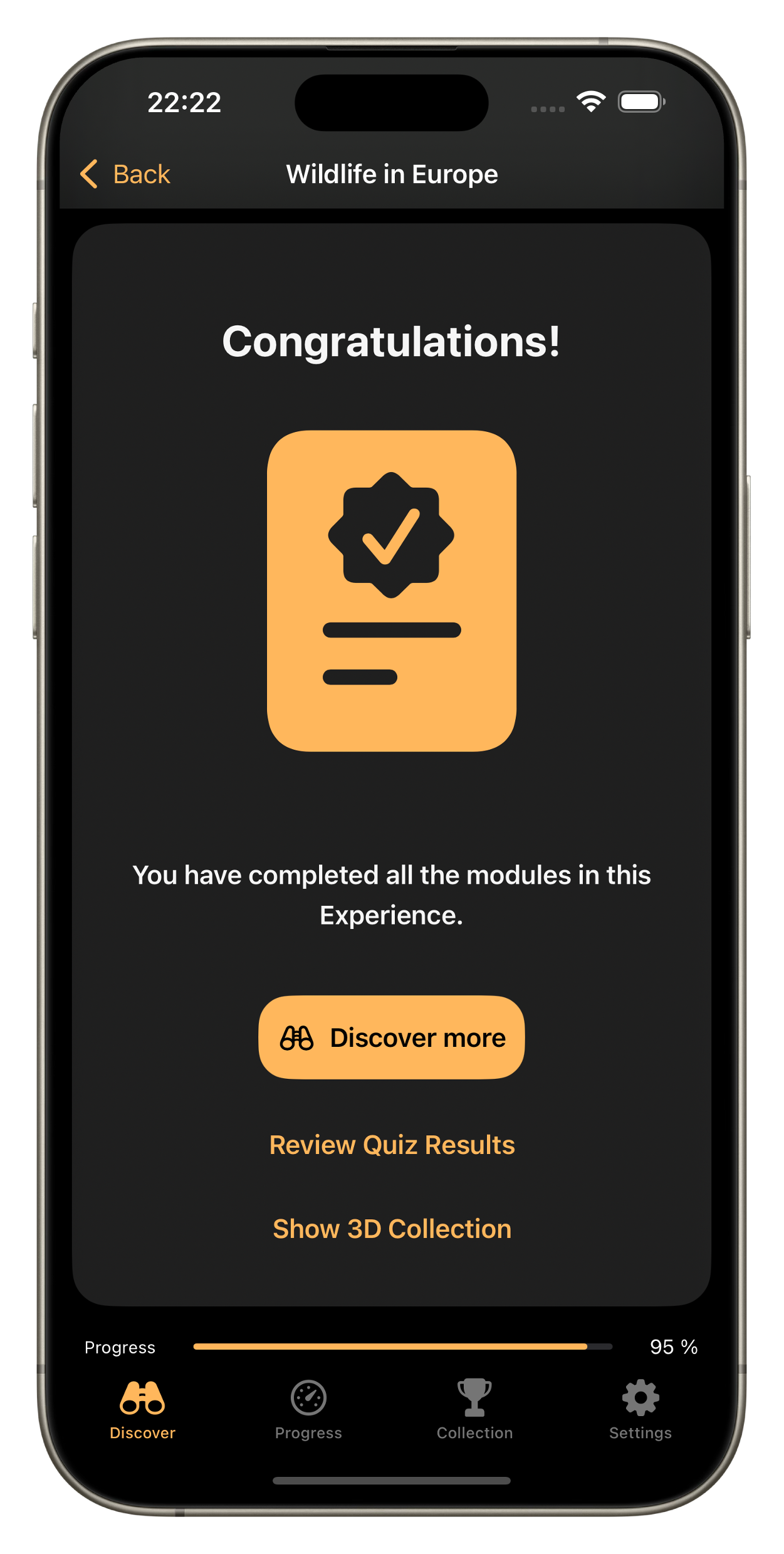
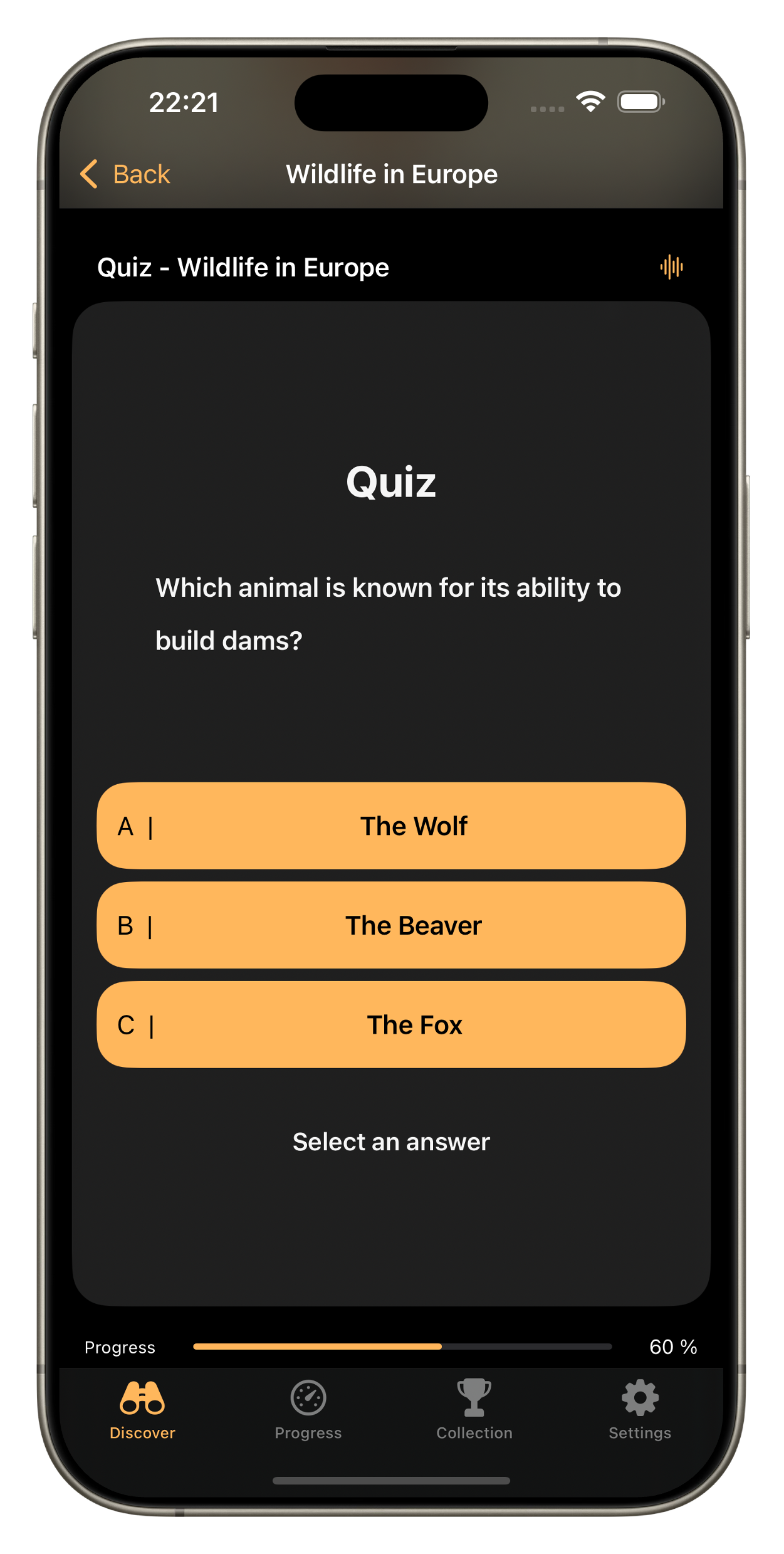
Depending on the exploration, quizzes are displayed on a learning module or at the end of the exploration. Tap on an answer to save your progress immediately.

To view the progress of all explorations on your device, tap on the Progress tab.
3.4 Select App Language

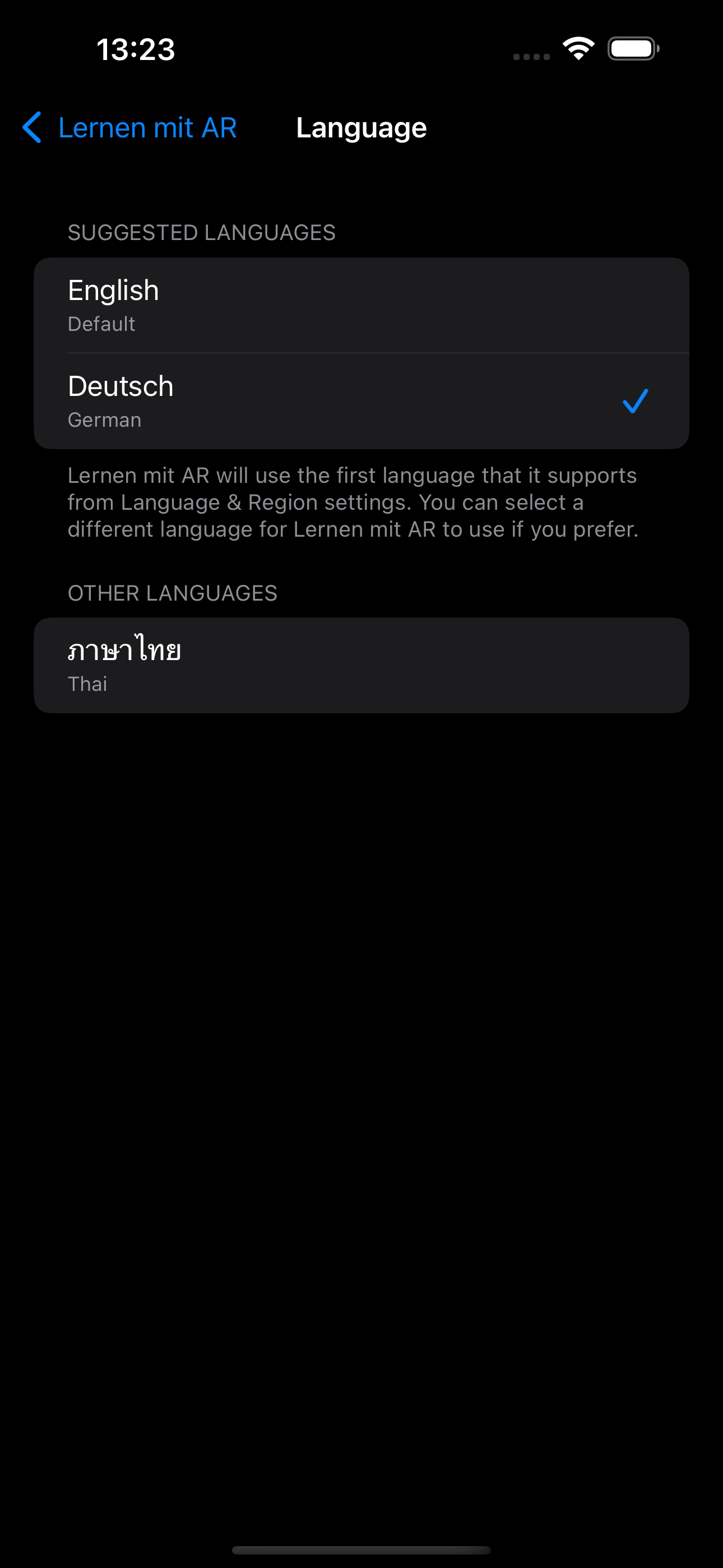
The app currently supports the following languages (see screenshot).

To change the language, go to the settings on your iPhone and select the desired language.

The app will then be displayed in the selected language.

4. Troubleshooting

4.1 The AR model is not displayed?

The app requires access to the camera to enable AR functionality. If you do not grant camera access, the AR model will not be displayed.

To grant camera access, go to the settings on your iPhone and enable camera access for the app.

In dark rooms, the 3D model may not be placed correctly or may not appear at all.

4.2 The app crashes?

If this happens, please report the error.

Open help page

4.4 How can I reset my progress?

To reset your progress, go to the settings within the app. There you can reset your progress.